[WIP] Users
Learn everything about user creation and permissions !
A – Context
Each agent who needs to use Ancitrak requires personal access. Ancitrak provides an efficient and centralized way to manage users and permissions. At the time of writing, only a few roles are available, but the system has been designed to remain flexible and easy to extend as future needs evolve (like more granuate an custom rôles).
B – Use Case
Ancitrak currently provides three roles, each corresponding to a distinct user profile within the CSSD workflow:
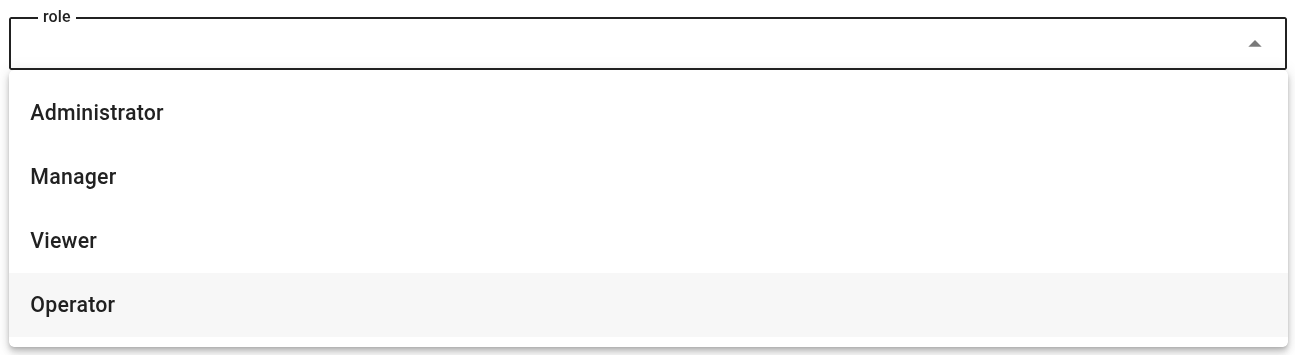
Administrator
This role is intended for CSSD supervisors or team leaders. As an Administrator, you can:
-
Create new user accounts for your agents
-
Assign roles and permissions
-
Disable or edit existing accounts
-
Access all configuration options of the platform
Manager
This is the default role for most CSSD agents. Standard Users can:
-
Access operational features of Ancitrak
-
Perform instrument scans and tray controls
-
Use tracking and documentation tools
-
View, but not modify, core configurations
Operator
This rôle is designed for ...
To be Filled (kev)
Viewer
This role is designed for auditors, trainees, or external personnel who need visibility without making changes. It more or less a Read-Only Users can:
C – Procedure
User administration is handled directly within the web interface of Ancitrak.
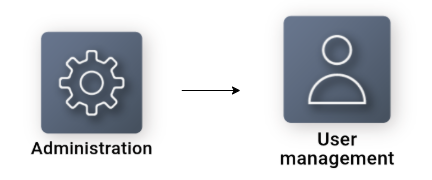
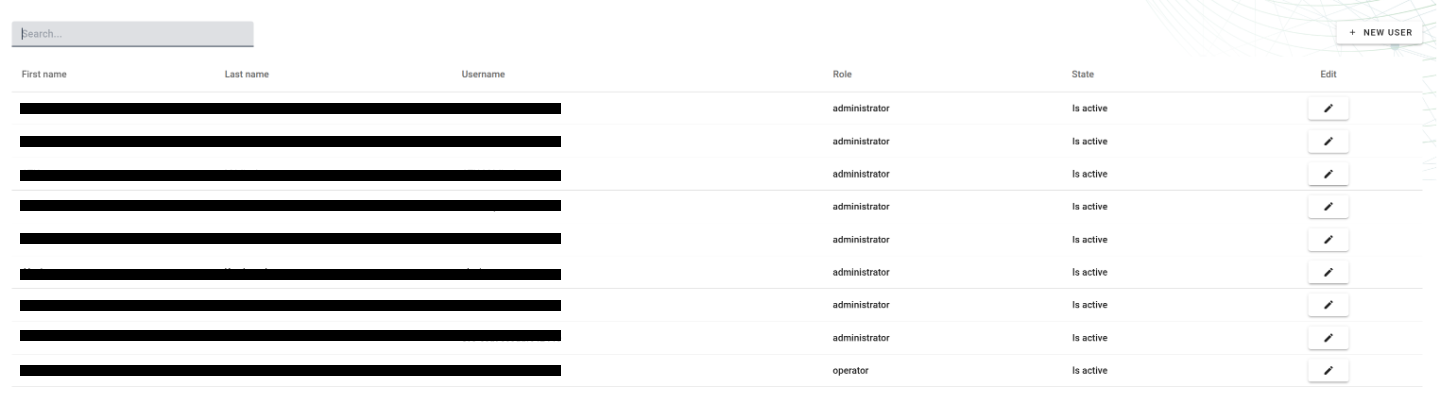
From there, you can :
- View the list of all users with their active roles
- Edit or deativate existing accounts
- Create new Users
C1 - Adding new user
|
Procedure
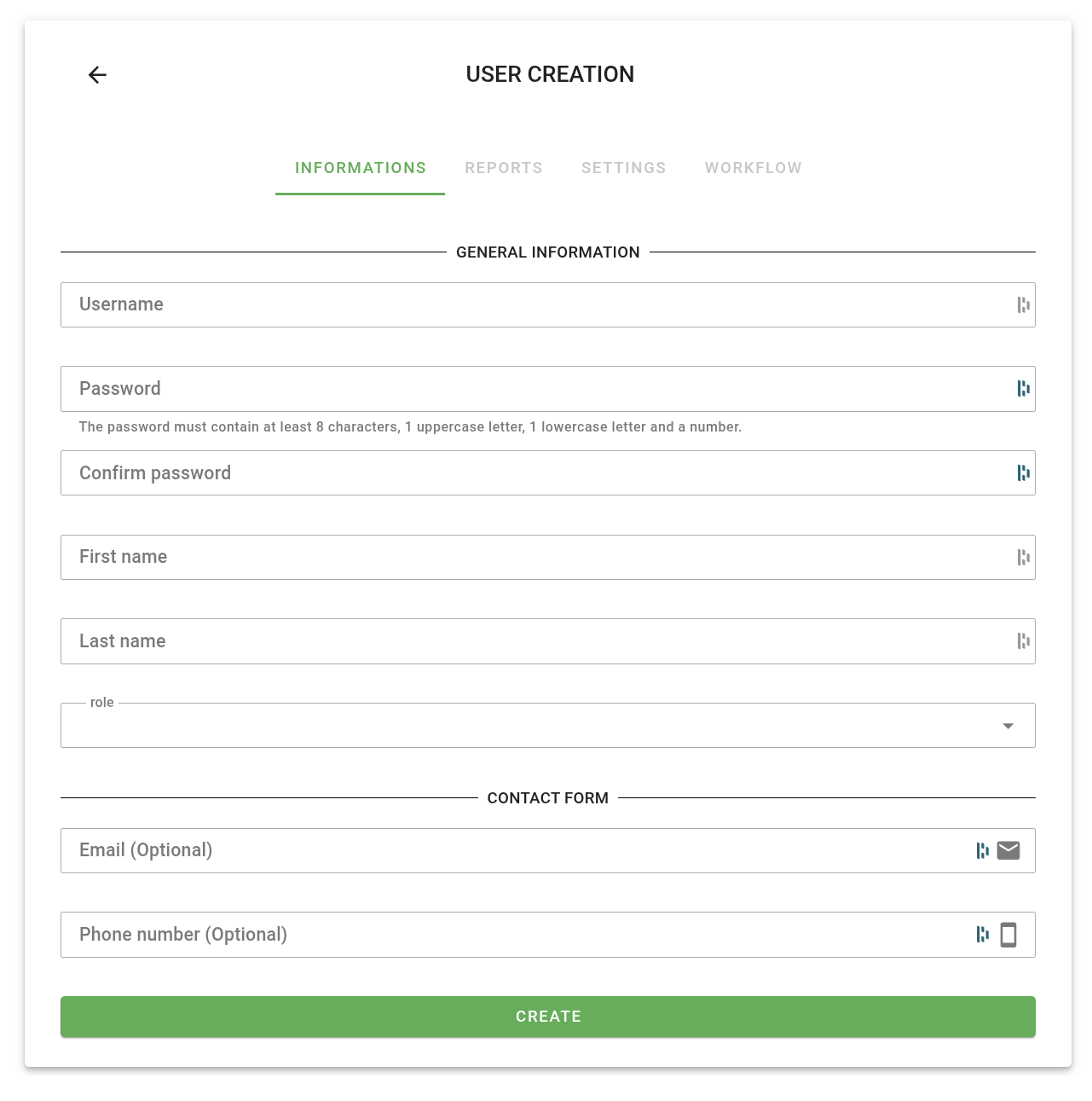
(1) On user list page click on the NEW USER button at the top right.
(2) Fill the GENERAL INFORMATIONS, those information are mandatory. (3) Fill the CONTAT FORM, those information are optional
(4) Click CREATE
|
|
C2 - Modifying users
|
Procedure
(1) On user list page click on Edit button
(2) Fill the GENERAL INFORMATIONS, those information are mandatory. (3) Fill the CONTAT FORM, those information are optional
(4) Click SAVE |
|

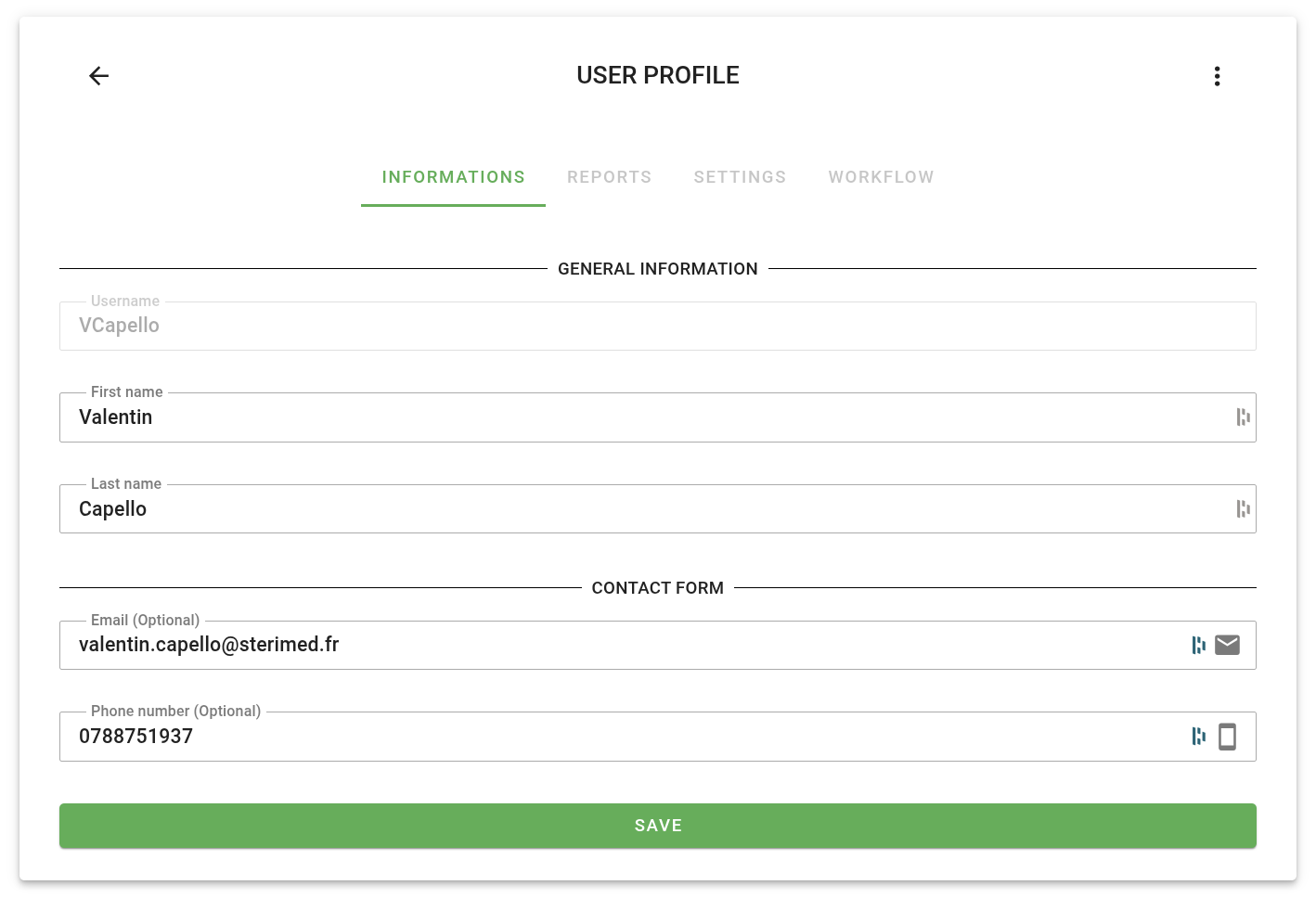
Note that when modifying a user, not all parameters can be changed (such as password or role). We are aware of this limitation and may address it in the future. For now, if you need to reset a password or change a role, please delete the user and recreate it with the updated information.
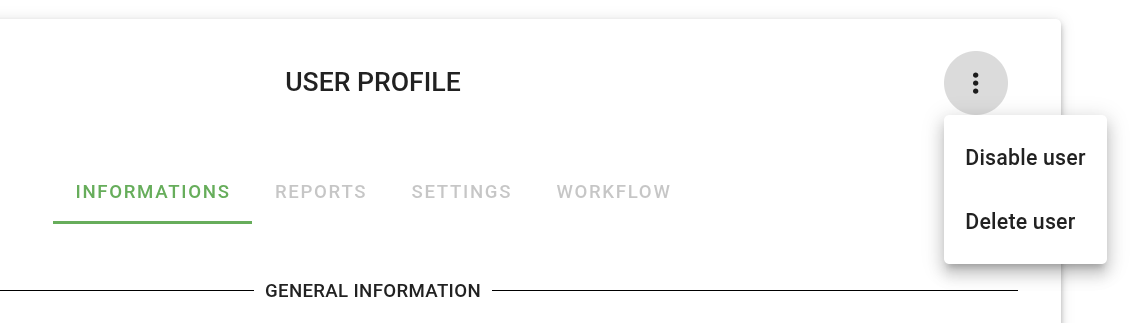
C3 - Delete and disable users
At the top left of the user modification form, the small menu button offers two self-explanatory actions. Use them wisely!