[WIP] Instruments multipart
Learn everything about multipart instruments—how to create them, edit them, and manage their components.
A - Context
The multipart instrument mode is simply an extension of a regular instrument when it is made of several components. We created this module to fully describe the structure of a kit, and to detect missing instruments whenever one of the sub-parts is absent—meaning the instrument, or part of it, is not in the tray.
This requires describing the structure of the multipart instrument and considering each sub-part as an instrument by itself. There isn’t much more to know about subcomponents, except that they are handled exactly like regular instruments.
TODO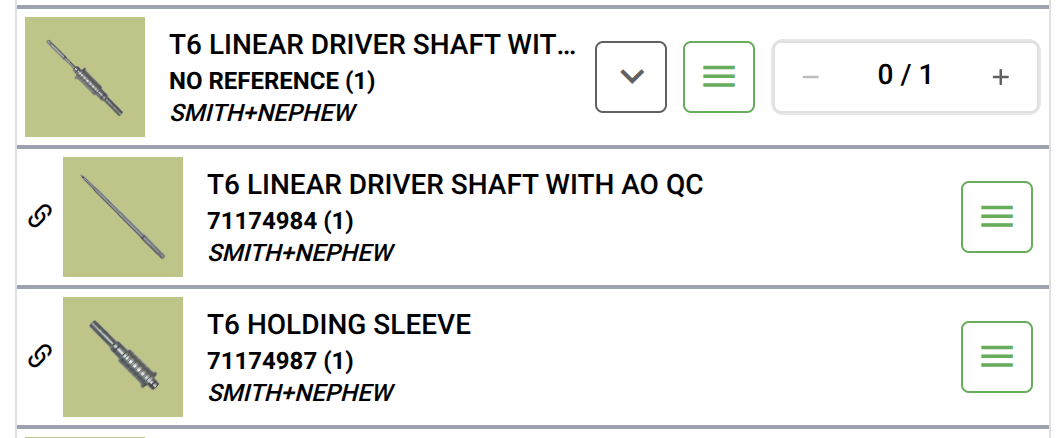
In screenshotthis d'unpicture listingthe multiT6 instruLinear Driver have 2 parts
B - Use cases
There is multiples case that we need to describe regarding the presence of reference on the subcomponents.
-
(1) All subparts carry the same reference, which is used — in the listing — as the reference of the multipart instrument.
(TODO: check procedure with Kevin/Reda) -
(2) Only the main part is marked with a reference, which becomes — in the listing — the reference of the multipart instrument. The other parts have no marking.
- (3) Each subparts is marked with it's own reference, e.g. partx-1, partx-2 or very specific reference for them.
-
(4) A mixed case, where some parts share the same marking, while others have no marking at all.
The rule of thumb is simple:
-
If a part has its own distinct marking, use that marking.
-
If several parts share the same marking, use this marking for the main part and set the others to NOREFERENCE.
-
If a part has no marking at all, set it to NOREFERENCE.
Incorrect assignments will dilute this part’s identity in the data and compromise its recognition and missing-instrument detection! So, do not assign the same reference to different parts unless they are truly identical.
Try to align your description with the instrument’s subpart structure—this will make reprocessing much easier.
C - Features
C1 - Import / replace
While you try to add a multipart instrument or a sub part of a multipart instrument found by autocomplete. Ancitrak will ask you if you want to import the complete structure or only the subpart.
TODO : screenshot (demander a reda une composition avec un multipart)
While you try to replace a instrument by a multipart instrument. Acitrak will ask you if you want to import the complete multipart structure or only the subpart.
TODO : screenshot (demander a reda une composition avec un multipart)
D - Full procedure
Todo : add picture to illustrate
Let’s see the steps to add an instrument.
-
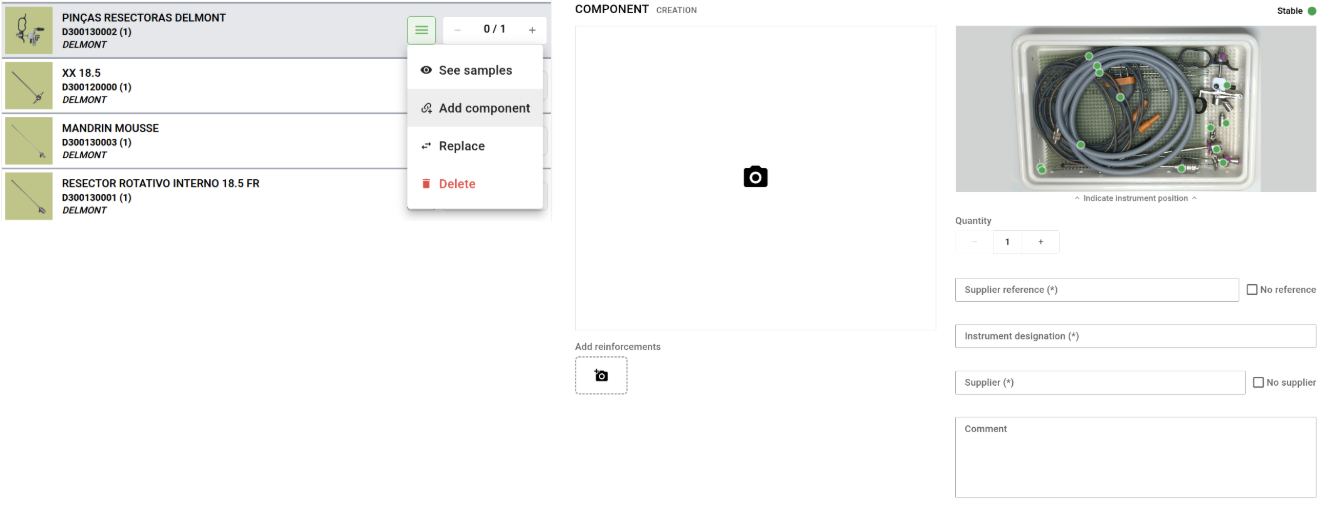
Click the instrument contextual menu and select Add component (see below : left), right panel will show the Component Creation form (see below : right)
-
Proceed exactly as if it was an instrument, by using autocomplete etc.
- Click add j