
Instruments
Learn here how to deal with instruments!
A - Context :
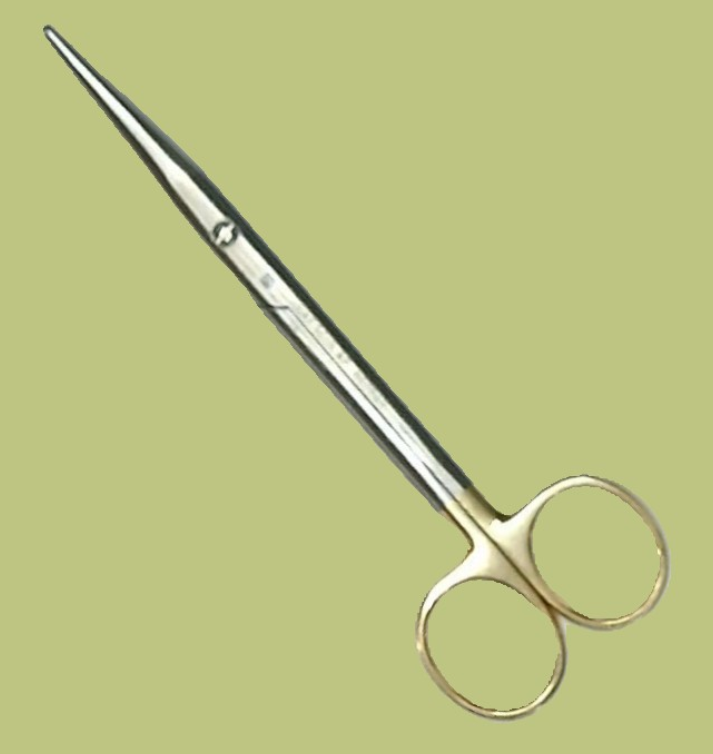
Instruments are one of the core components of the Ancitrak and ActKloud data structure. They store all collaborative information required to uniquely identify each instrument among all those in existence. At the writing time of thoses lines there here are the informations that can be gathered.
|
|
 |
B - Use cases :
Identifying a cloud instrument is always done using the Supplier–Reference pair. As a result, the same Reference may exist across multiple suppliers. There is a wide range of possibilities regarding whether an instrument is marked or not. Ancitrak supports four distinct scenarios.
- (1) Supplier + Reference (e.g. Aesculap + FB402R)
- (2) Supplier + No Ref (e.g. Aesculap + NoRef)
- (3) No Supploer + Reference (e.g. NoSupp + 000129)
- (4) No Supplier + No Reference (e.g. NoSupp + NoRef)
Note that Ancitrak and ActKloud always require an identifier. This means that if an instrument is missing either a Supplier or a Reference, a corresponding placeholder value (e.g., NOREF1920 or NOSUPP5939) will be automatically generated by the system. You may encounter this placeholder in various parts of the system.
ActKloud processes instrument references according to its own rules, removing unnecessary spaces, commas, dashes, and other characters. Don’t be surprised if the reference is automatically adjusted to something different from what you initially entered. These internal transformations are normally not visible to users, but this behaviour is completely normal and required for Ancitrak and its internal processes.
C - Features :
One specific aspect of our instrument images is the concept of reinforcement. Reinforcement images are additional viewpoints of an instrument that are integrated into the database to help the system recognise it more accurately in the future. Note that the main image (the one displayed in large) is also considered a reinforcement image.
C1 - General Interface
In instrument Creation (related to a kit), you will always find 3 visual components for creation. All three areas must be completed with the required information in order to add the instrument.
- (1) Get instrument pictures (or/and reinforcements)
- (2) Indicate Instrument position on tray picture (if specific place) + set the quantity
- (3) Fill the instrument details form
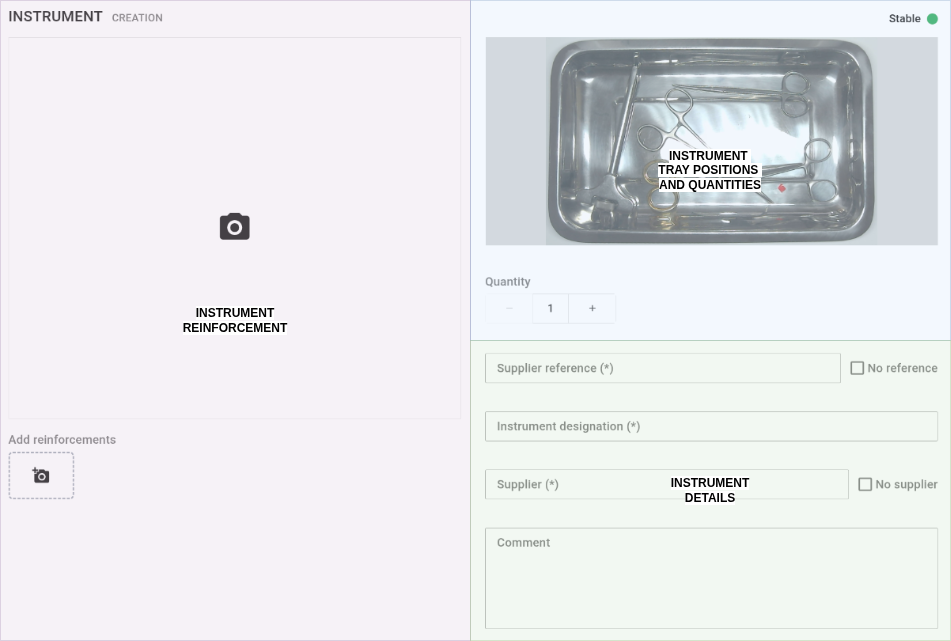
See below for a detailed explanation of each area.
C2 - Instrument Reinforcement Area
Instrument Reinforcement area correspond to where we can take multiple pictures of an instrument to enhance its recognition. There is 3 states depending on the ongoing actions :
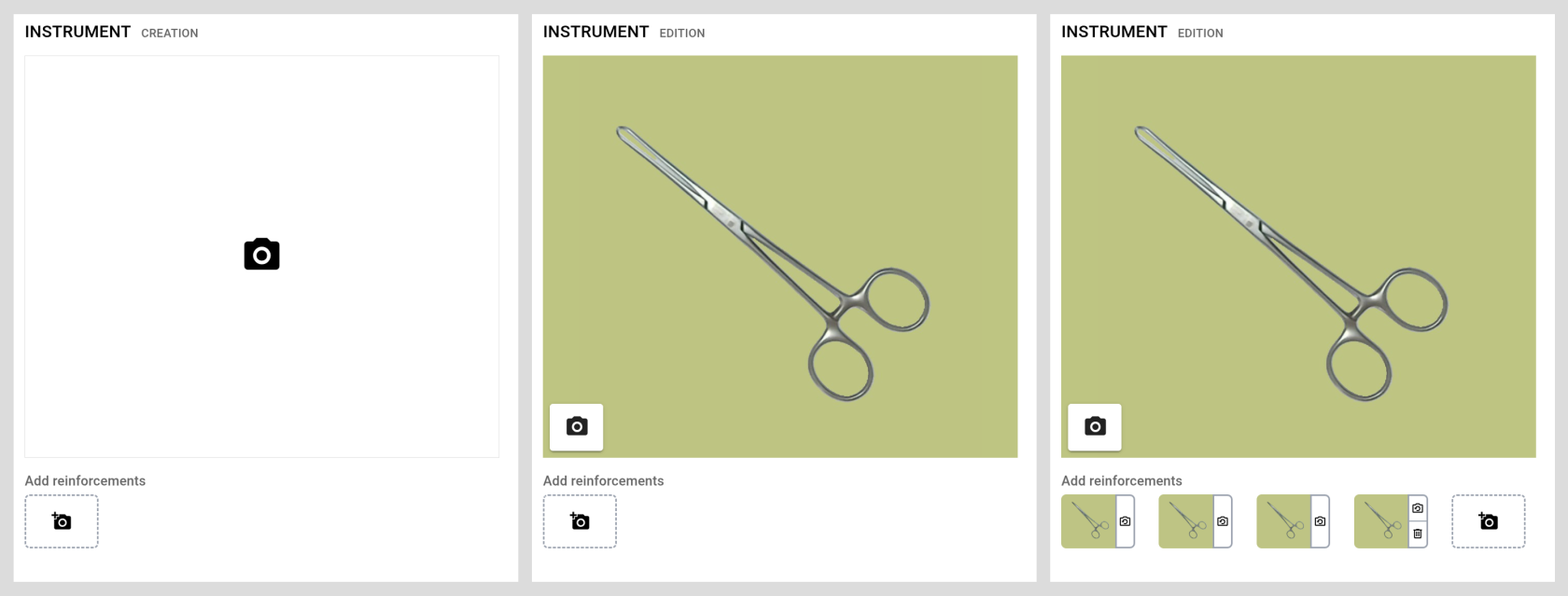
- Left is when the instrument does NOT have any pictures
- Middle is when the instrument exists and there is at least one picture of it
- Right is when the instrument is being reinforced, multiples Reinforcements have been added
Procedure
|
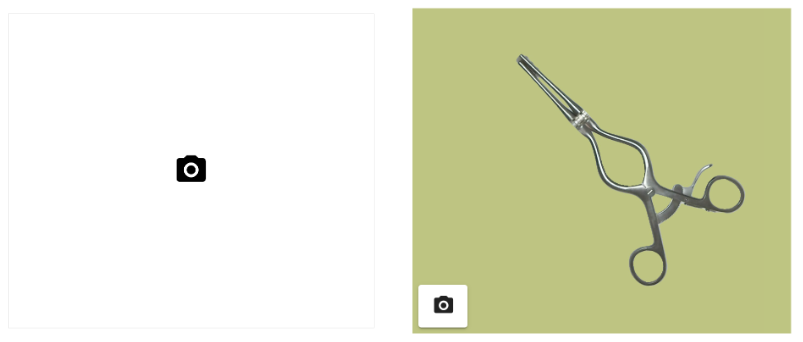
(1) Add first Reinforcement by clicking to the camera icon, the image will appear shortly, as shown below. Feel free to retake the picture by clicking the small camera icon. |
 |
|
(2) Add additional reinforcement images by repositioning the instrument and clicking the +camera icon. Each time you create a reinforcement image, you can choose to retake it or to discard/remove it. Its important to move the instrument between reinforcement giving the possibilité for the system to view the instrument from it's different perspectives. |
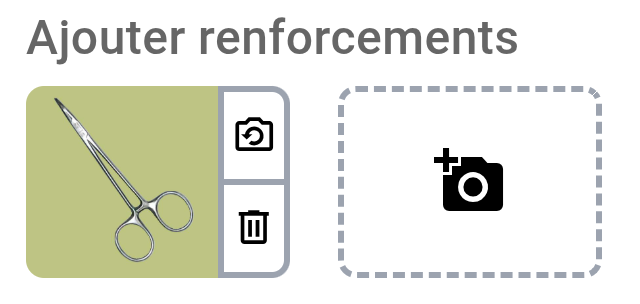 |
Do not open instruments, keep them as they will usually be stored in the container!
C3 - Instruments tray positions and quantities Area
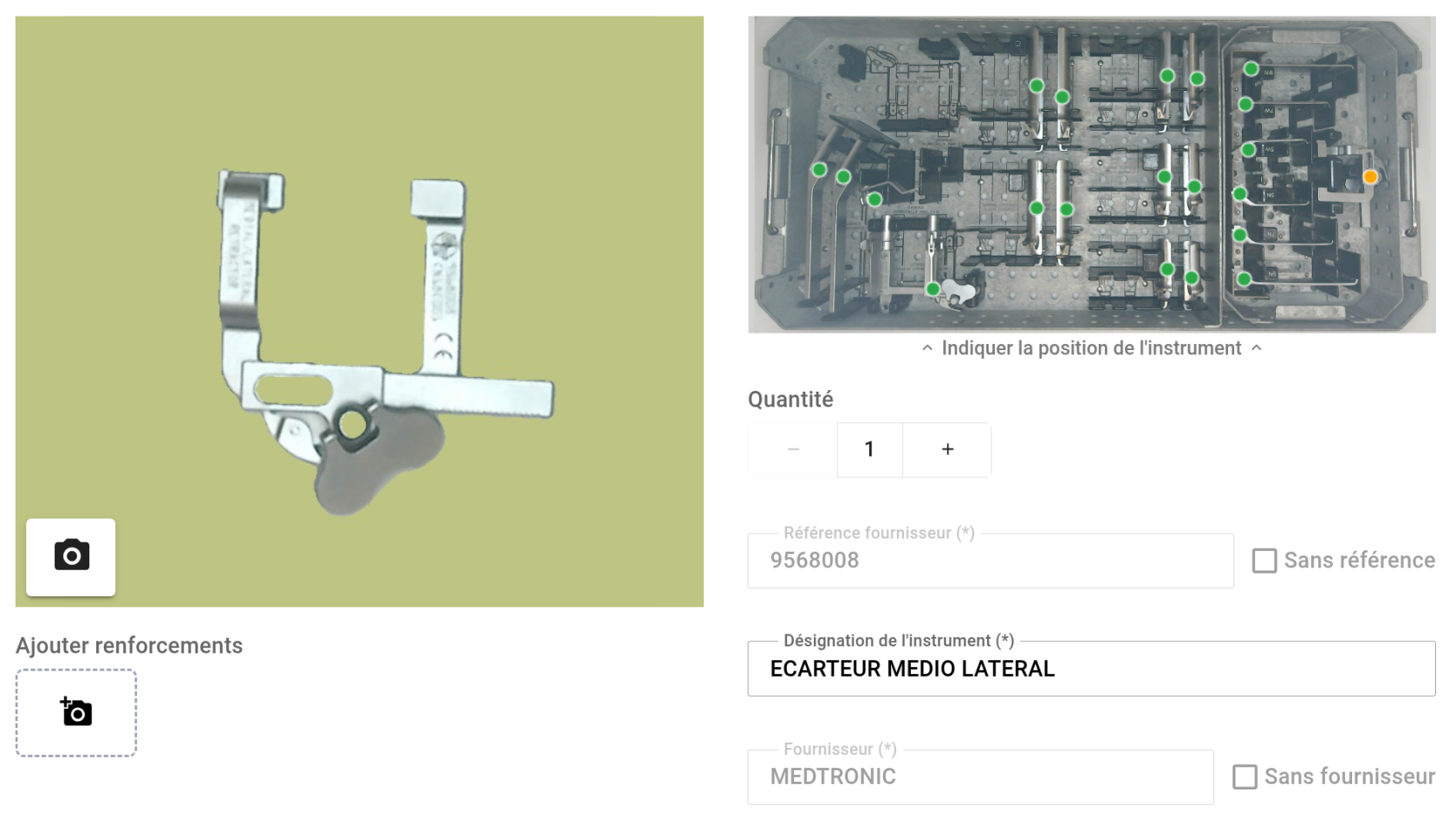
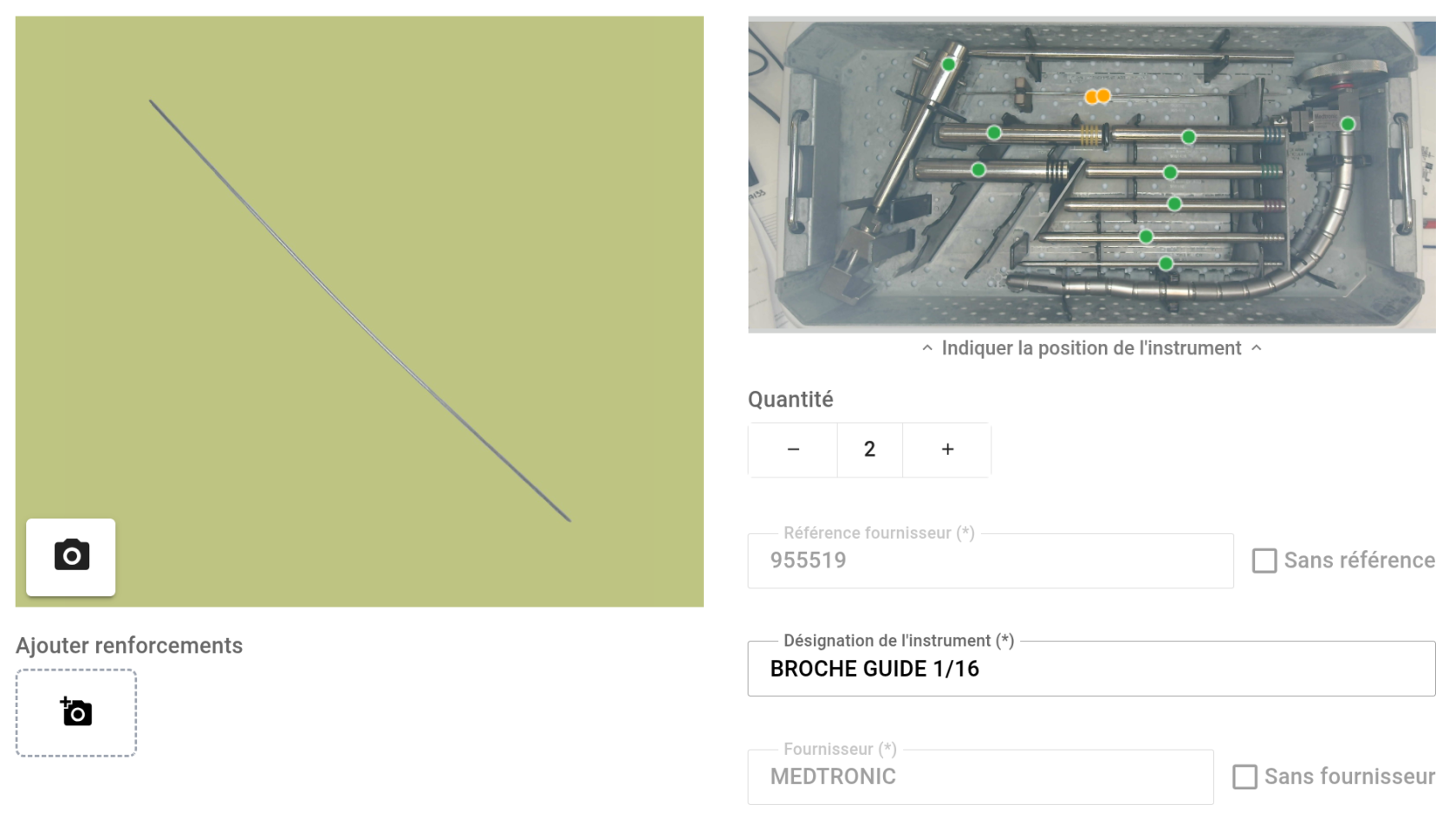
This area shows where the instruments are positioned in the tray. Placement is done by clicking the location the appropriate number of times, corresponding to the quantity of this instrument in the tray.
Exampe below for one instrument (MEDTRONIC+9568008), one yellow point for ine instrument.
Example below for two instruments (MEDTRONIC+955519), two yellow points for two instruments.
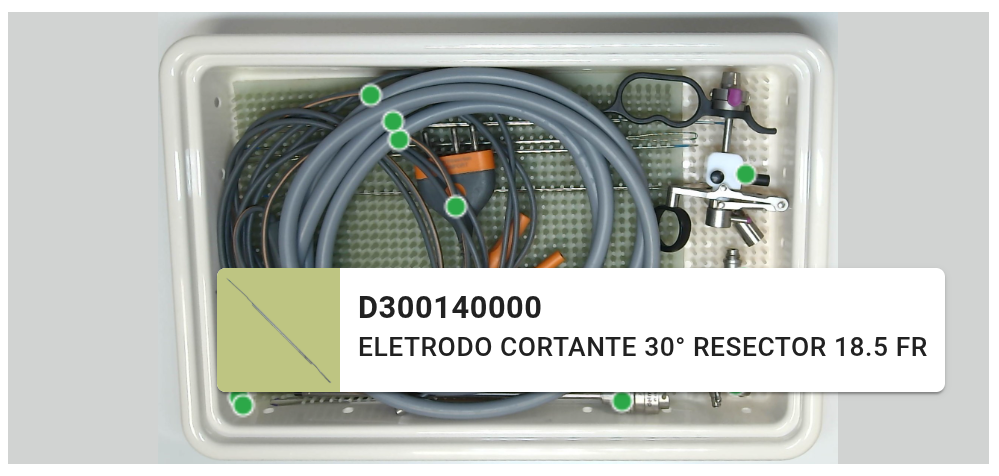
Green dots correspond to other instruments. When hovering over a dot, a small tooltip will display the instrument reference to help with localisation.
Procedure
| (1) Add first the quantity of instrument of this kind in the platform by adjusting the dedicated spinner |  |
| (1) Adjust the position by clicking the map. See below the new position (in gray), the old position remain in yellow until the instrument validation. | 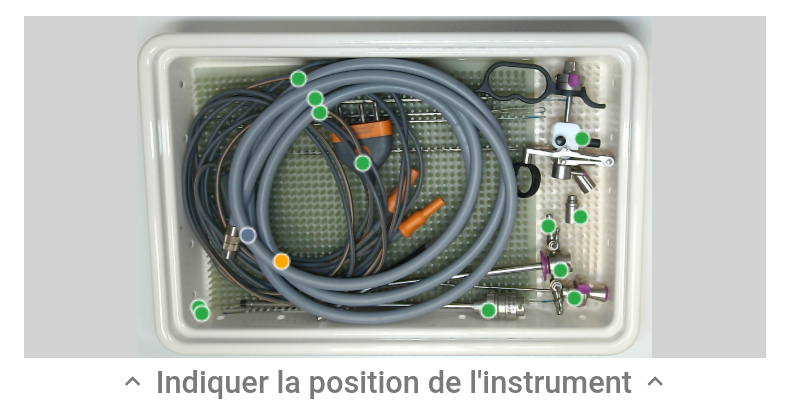 |
C4 - Instruments details Area
The Instrument Detail Area is a form where all required instrument information is displayed or entered. Depending on the status or the creation step, the form may appear differently, as some fields can be greyed out (disabled from editing) to prevent incorrect usage.
There are two possible cases : the instrument either exists or does not exist.
See below 3 steps to add a new instrument from autocompletion.
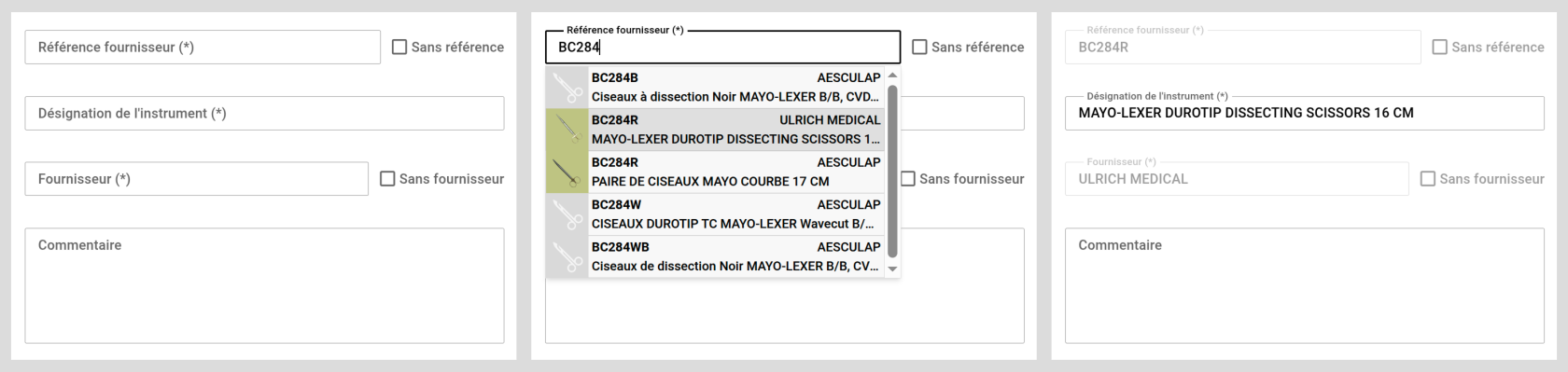
- Left : The form is empty and ready to receive information.
- Middle : The Reference field is being autocompleted; the cloud is queried for existing instruments.
- Right : A Reference has been selected. The user may override the designation if needed (to adjust what will be displayed to the agents).
|
|
In the autocomplete list, some instruments already have images while others do not. This means the instrument exists in the database but no images have been added yet. In this case, you are providing the first images for this instrument, and reinforcement photos will need to be added. |
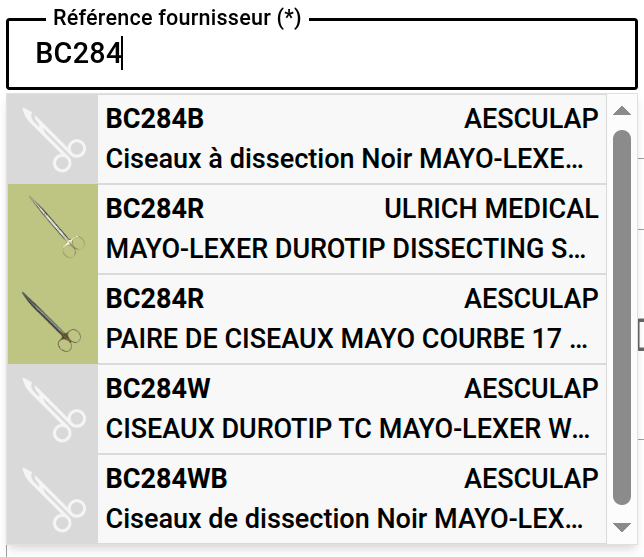
Note that non-editable fields are greyed out. See below for a comparison between a greyed-out (non-editable) field (left) and a normal editable field (right).
